Apple Music Widget on Mac: MiniPlayer or Desktop Artwork
Show Apple Music album artwork on your Mac with MiniPlayer, check the widget gallery, or use a desktop turntable. Includes setup and permission help.
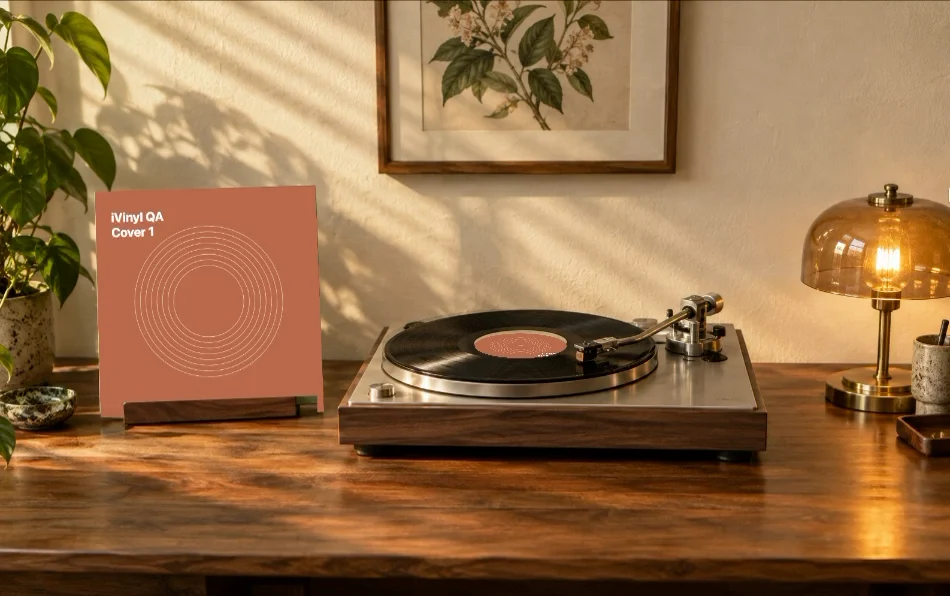
If you want an Apple Music widget on Mac mainly to see the album cover and control a song, try Music’s built-in MiniPlayer first. It gives you an artwork window without purchasing a separate display app. For a turntable sitting behind your regular windows, a desktop scene app is a different option.
Start with Music’s MiniPlayer
Apple’s MiniPlayer guide describes the built-in route:
- Open Music on your Mac and start playing a song.
- Choose Window → Switch to MiniPlayer.
- Show the artwork if you are using its smaller controls-only view.
- To keep the window above your other apps, open Music → Settings → Advanced and enable the MiniPlayer option for staying on top.
MiniPlayer is a normal music window. That is useful when controls should remain visible; it is different from artwork placed at the desktop level behind your work.
Check the widget gallery on your Mac
Control-click the wallpaper, choose Edit Widgets, then search the apps available on your machine. Apple’s widget guide explains how to add, move and remove tiles.
Widget availability depends on the installed apps and system version. An iPhone widget also has Apple’s account, iOS and proximity requirements. A Music widget should not be treated as a Spotify controller: check which service the supplying app actually supports. The Spotify widget setup guide covers that distinction.
Put live album artwork into a desktop scene
iVinyl reads the song playing in the Apple Music desktop app and places its cover in one of three turntable scenes. Its desktop window sits above the wallpaper and below ordinary windows, so it serves as part of your desktop rather than a floating playback controller.
Install the app in Applications, open Settings, choose a scene and enable Desktop artwork. Play a song in Music. When macOS requests Automation access, review the request and allow Music access if you want live track information. Apple documents the permission controls under Privacy & Security → Automation.
You can choose an opaque room scene or disable the background to use your own wallpaper. Keep playback controls in Music. To keep the scene visible when playback pauses, turn off Hide artwork on pause in the app.
The homepage video is an actual recording of version 1.1.0 reading two local Apple Music test tracks with original sample covers. It shows the record moving and the artwork changing. It does not establish compatibility with every subscription-only or special album, which has not been fully tested.
Before you purchase
The app requires macOS 13 or later, supports Apple silicon and Intel, and uses an English interface. The price is $2.99 once; purchasing and downloading again requires a website account. Check release availability and installation details before purchasing. The same page explains the permissions and links to the existing refund-request process.
If the cover is missing, change tracks in Music, check Automation access, and confirm Desktop artwork is enabled. Choose a smaller framing if the scene does not fit your display. For an installation warning, read Apple’s advice on safely opening Mac apps and contact support; do not turn off Gatekeeper. Include your app version, macOS version and whether the track is local or streamed.