Spotify Widget on Mac: Setup and Desktop Artwork
Set up a Spotify desktop widget on Mac, check iPhone widget limitations, and choose between playback controls and a desktop turntable display.
For a Spotify widget on Mac, start with the display you actually want: a tile in the widget gallery, a small playback controller, or album artwork on your wallpaper. Each needs a different tool. Searching for “Spotify” in Edit Widgets will not necessarily produce a working Mac widget.
Add a widget supplied by a Mac app
Silicio is one documented option. Its Mac App Store listing lists Spotify support, album artwork, song information and desktop widgets for macOS Sonoma or later. Check the listing for your region before installing; these instructions describe its advertised integration, not a hands-on review of Silicio.
- Install and launch the Mac app you have chosen. Check its macOS requirement and privacy information.
- Open the Spotify desktop app and play a song.
- Control-click your Mac wallpaper and select Edit Widgets.
- Search for the app supplying the widget, such as Silicio, rather than assuming the widget is named Spotify.
- Add the available widget, click Done, then change the song in Spotify to check that the artwork and title update.
Apple documents the gallery and placement steps in Add and customize widgets on Mac. An app may supply several sizes or support only some versions of macOS.
Using an iPhone widget is a separate route
Apple also lets compatible iPhone widgets appear on a Mac. Its guide requires iOS 17 or later, the same Apple Account on both devices, and an iPhone nearby or on the same Wi-Fi network. Enable Use iPhone widgets under System Settings → Desktop & Dock, then inspect the gallery.
That setting does not create a Spotify widget by itself. The iPhone app must provide a compatible widget. If the tile asks you to open the app on your iPhone, interaction belongs on the phone; it is not proof that the Mac Spotify app can be controlled from that tile. Do not buy a Mac utility solely because an iPhone app has a similarly named listing.
Choose controls or a desktop scene
- Need play, pause and next? Choose an app that explicitly provides playback controls, and confirm its Spotify integration and permissions before buying.
- Need a widget-gallery tile? Check for desktop widget support and the required macOS version in the developer’s listing.
- Want your wallpaper to feel like a listening room? A desktop artwork app serves a different purpose.
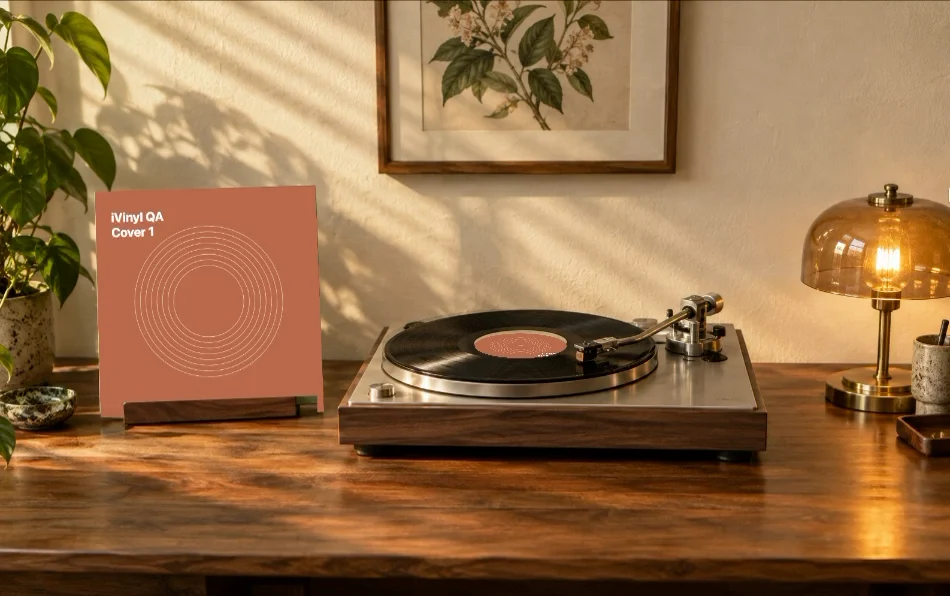
iVinyl is in the last group. It displays a spinning turntable and the current album cover from the Spotify or Apple Music desktop app. Playback stays in the music app: it does not stream songs, download tracks or supply its own playback controls. It requires macOS 13 or later, supports Apple silicon and Intel, and has an English interface. The download page shows the current $2.99 one-time price and release availability; a website account is required to purchase and download again.
The image above comes from the actual app. The homepage demonstration uses Apple Music with original local test tracks and sample cover artwork. It does not claim a Spotify session was recorded.
If the display stays blank
First confirm that the Spotify desktop app is playing locally. A browser tab or Spotify Connect playback on another device is a different situation; check whether your selected utility supports it. Spotify describes its desktop and browser options in Supported devices.
If a utility requests music access, review System Settings → Privacy & Security → Automation. Apple explains how to allow or revoke app automation. Read the app’s privacy policy before granting access. For iVinyl, allow access to the music app, then change tracks and reopen Settings if an earlier request was denied. Do not disable macOS security protections to troubleshoot a missing cover.
For Apple’s own artwork window, see the Apple Music desktop artwork guide. For installation or purchase problems, use product support and include your macOS version and app version. Refund requests use the process in the Terms; this guide does not promise an automatic refund period.